
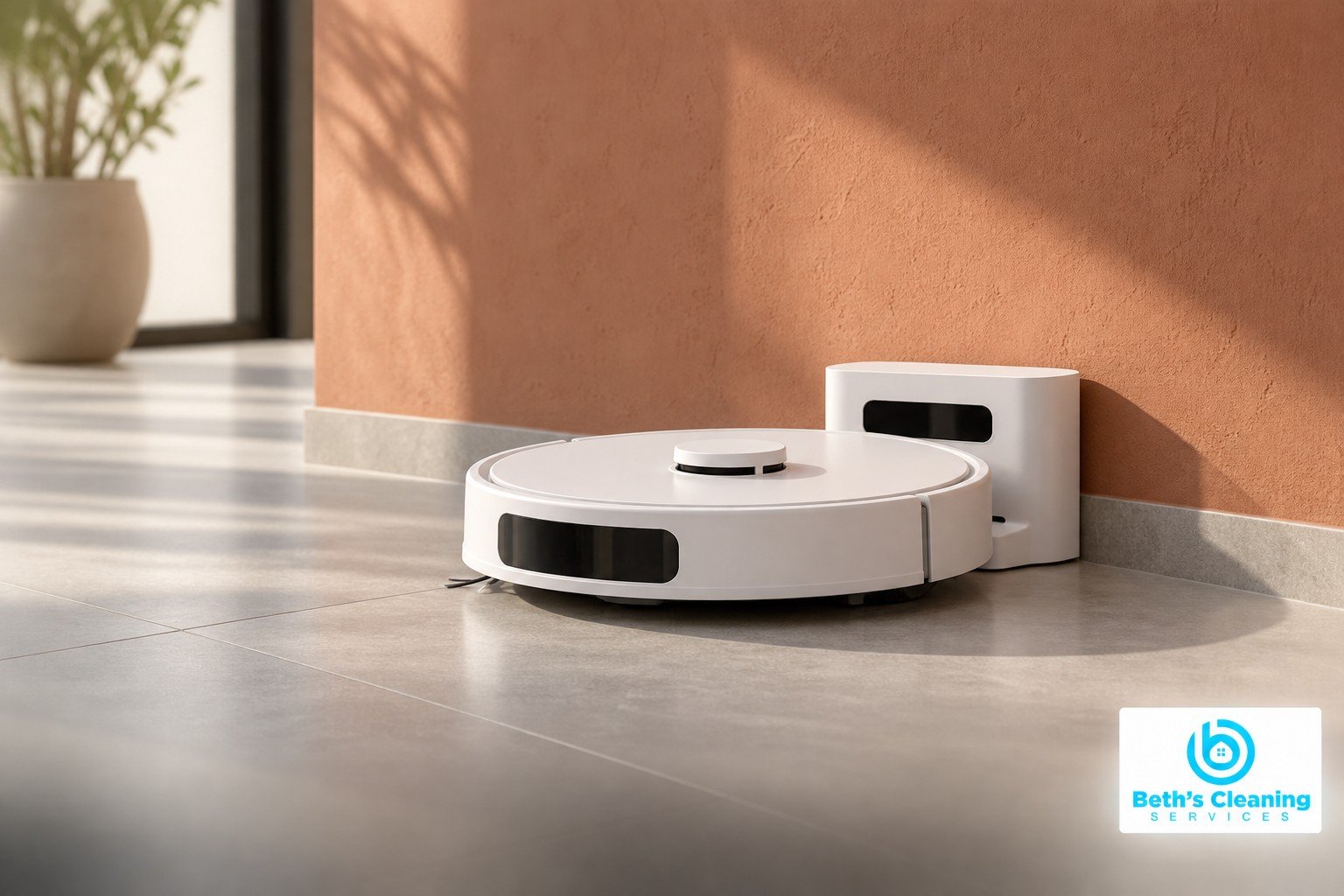
To clean a robot vacuum dock, remove loose debris and follow the manufacturer’s instructions for its charging contacts and sensor windows. The robot’s cliff sensors also need attention. These parts do different jobs, so a method approved for metal contacts may be unsuitable for an optical window. Start with the care guide for the exact robot and dock combination.
Identify the Parts and Disconnect Power
Pause scheduled cleaning and follow the manual’s shutdown procedure. Unplug the dock before cleaning its electrical contacts and observe any specified waiting period. Remove the robot carefully; do not carry a large station by a removable lid or water tank.
Use the manual’s diagrams to locate charging pads, docking windows, cliff sensors, cameras, and other accessible sensors. Their locations vary, and not every dark opening is a sensor you should clean. Avoid opening housings or inserting a tool into a camera, laser turret, or speaker opening.
Wipe Sensor Windows Gently
A clean, dry, lint-free cloth is the specified approach for many optical surfaces. Roborock’s S5 maintenance guide, for example, calls for a dry, lint-free cloth on its sensors. Use light pressure and a clean section of cloth so grit is not dragged across the window.
Inspect the underside only as directed, supporting the robot without pressing on delicate components. Remove visible dust from the accessible cliff-sensor windows. Do not cover or disable those sensors to suppress an error; they help the robot detect drops.
Do not spray glass cleaner, water, disinfectant, or polish onto the robot or its openings. A cotton swab, alcohol wipe, or abrasive sponge is not automatically suitable just because it fits into a small space. Use those materials only where the manufacturer specifically approves them.
Clean Charging Contacts by Model
Check both matching sets of metal contacts: one on the robot and one on the dock. Dust or residue may interfere with contact, but scratched, corroded, or damaged pads require more than wiping.
iRobot’s instructions for the Roomba 2 Essential and AutoEmpty dock specify unplugging the dock, waiting 60 seconds, and using a lightly dampened cloth or approved melamine foam on the charging contacts. The same page warns against spraying sensors. This is a model-specific contact treatment, not permission to use damp foam on every robot’s lenses.
Follow your product’s drying instructions before restoring power. Do not sand contacts, scrape them with metal, or add oil to improve the connection. If you see damaged surfaces or the contacts remain discolored, ask the manufacturer whether a part needs replacement.
Clean a Robot Vacuum Dock Without Soaking It
Remove loose dust, hair, and crumbs from the docking platform and nearby floor. Keep the approach clear so the robot can align with the station. Maintain the placement and clearance specified by the manual rather than relying on one universal distance.
For an auto-empty station, distinguish a disposable dust bag from a reusable collection bin. Replace bags and clean bins according to the manufacturer’s directions. Do not wash a disposable bag or operate the station without required filters and seals. Clear only user-accessible air passages, with power disconnected.
A mop-washing station adds tanks, trays, and sometimes cleaning-fluid cartridges. Wash only components labeled washable, using the approved solution and amount. The powered base is not a sink-safe part. Keep water away from contacts and refit removable pieces only as directed.
Check Docking After Reassembly
Return the station to its intended position, confirm that covers and removable parts are seated, and restore power as instructed. Start the manufacturer’s docking or charging check. Look for the expected charging indication rather than assuming that a robot touching the base is charging.
If it repeatedly backs away, misses the dock, or reports a sensor error, record the exact message. Check the manual’s troubleshooting sequence for that message. Avoid deleting maps or resetting the device as the first response to a dirty window.
Choose a Useful Maintenance Routine
Use the maintenance schedule in the app or manual and inspect sooner after dusty cleaning or heavy pet-hair pickup. Keep sensor care, brush cleaning, dust-bag replacement, and wet-dock maintenance as separate reminders. Persistent charging faults, liquid intrusion, or damaged parts call for manufacturer support.
For broader household upkeep in Peabody and surrounding service areas, explore Beth’s Cleaning Services’ regular cleaning and confirm included tasks. Robot repairs and internal dock servicing belong with the appropriate product specialist.

Follow us for more cleaning tips and inspiration!
📸 @beths_services on Instagram | 👍 BethCleaningServices on Facebook